How to Configure a Siemens Operator Panel for PROFINET Networks
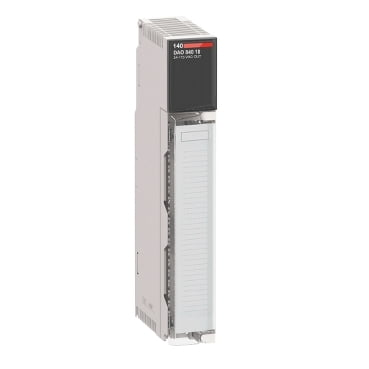
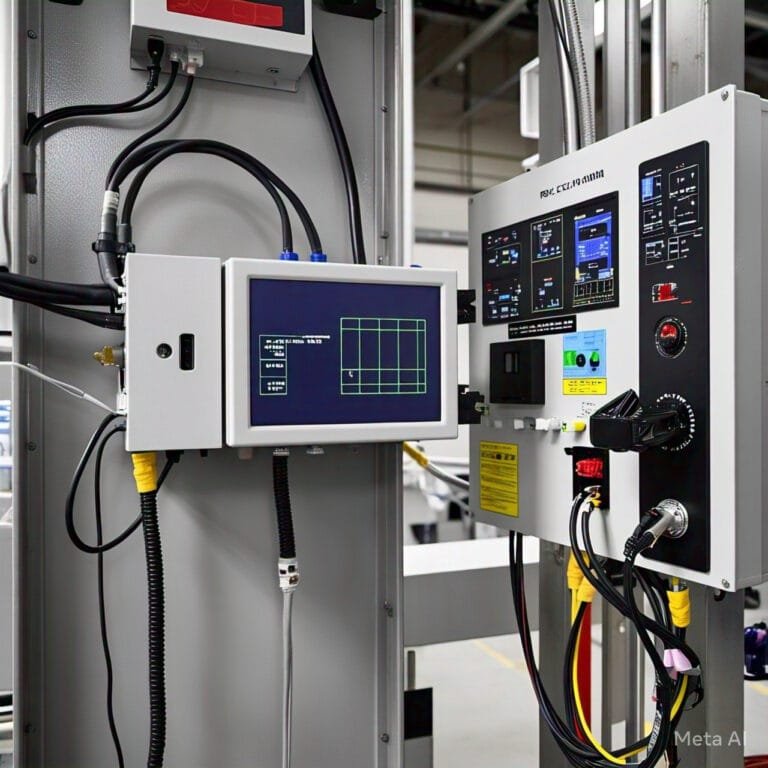
The 6AV2124-0GC01-0AX0, commonly referred to as the KTP700 Basic PN, is a compact 7-inch human-machine interface designed for industrial automation applications. The “PN” variant includes built-in PROFINET capability, enabling reliable communication with modern programmable controllers over an Ethernet-based industrial network. Proper configuration is essential to ensure stable data exchange between the HMI and the control system.
This guide explains how to set up the HMI for PROFINET communication using TIA Portal, which serves as a unified engineering platform for configuring automation devices
Requirements Before You Start
Ensure the following items are available before beginning the configuration process:
Software
- TIA Portal (version 15 or later recommended)
- An installed HMI engineering license suitable for Basic Panels
Hardware
- KTP700 Basic PN operator panel (6AV2124-0GC01-0AX0)
- A controller with PROFINET support
- Industrial Ethernet (PROFINET) cable
- Programming interface or Ethernet adapter for initial setu
Configuration Procedure
Step 1: Create a New Project
- Open TIA Portal.
- Select Create new project.
- Assign a meaningful project name.
- Confirm to create the project.
Add Devices to the Project
Both the controller and the HMI must be added to enable communication.
Add the Controller
- Right-click Devices & networks
- Select Add new device
- Choose the appropriate controller model and firmware version
- Confirm the selection
Add the HMI Panel
- Again, select Add new device
- Navigate to HMI → Basic Panels → 7-inch panels
- Select KTP700 Basic PN
- Choose the correct hardware version and add it to the project
Set Up the PROFINET Network
- Open Network view.
- Locate the PROFINET interfaces of both devices.
- Drag a connection from the controller’s Ethernet port to the HMI’s Ethernet port.
- A green line indicates that the network link has been successfully created.
Configure Network Settings for the HMI
Correct IP configuration is critical for communication.
Select the HMI in Device view.
Open Properties.
Go to Ethernet addresses.
Choose Manual IP configuration
A fixed IP address (for example, 192.168.0.
Subnet mask (typically 255.255.255.0)
Ensure the controller and HMI share the same subnet.
Using static IP addresses is recommended for industrial networks to avoid communication loss after power cycles.
Create the Communication Link
- Under the HMI device, open Connections.
- Add a new connection.
- Select the controller as the communication partner.
- Verify the connection type is set to S7 connection.
- Confirm that the partner device is reachable via PROFINET.
Design Screens and Assign Variables
- Create operator screens within the HMI project.
- Add elements such as buttons, indicators, and input fields.
- Assign each element to controller variables or mapped HMI tags.
- Tags can be selected directly from the controller’s variable list.
Common Troubleshooting Tips
- Target device not found: Verify cable connections and ensure your PC is on the same network range.
- Communication error at runtime: Recheck IP addresses and subnet masks on both devices.
- No response from controller variables: Confirm correct connection settings and validate tag addressing.
Summary
Setting up the 6AV2124-0GC01-0AX0 for PROFINET communication is a straightforward process when completed step by step in TIA Portal. By assigning fixed IP addresses, establishing a network connection, and correctly linking controller variables, you create a stable and reliable interface between the operator panel and the automation system. This configuration ensures smooth operation and effective interaction between users and the control process.